Register your purchase code
After installing Milano, register your purchase code. This unlocks theme updates, demo imports, bundled premium plugins, and support from the UIX Themes team.
Find your purchase code
Section titled “Find your purchase code”- Log in to your ThemeForest account.
- Go to your Downloads page.
- Find Milano in your list and click Download next to it.
- Select License certificate & purchase code from the dropdown. This downloads a text or PDF file.
- Open the file and copy the Purchase Code — it looks like a long string of letters, numbers, and dashes.
For more details, you can refer to the Where Is My Purchase Code? tutorial.
Enter your purchase code in Milano
Section titled “Enter your purchase code in Milano”- Go to Milano → Dashboard → License in your WordPress admin.
- Paste your purchase code into the License Key field.
- Click Activate License.
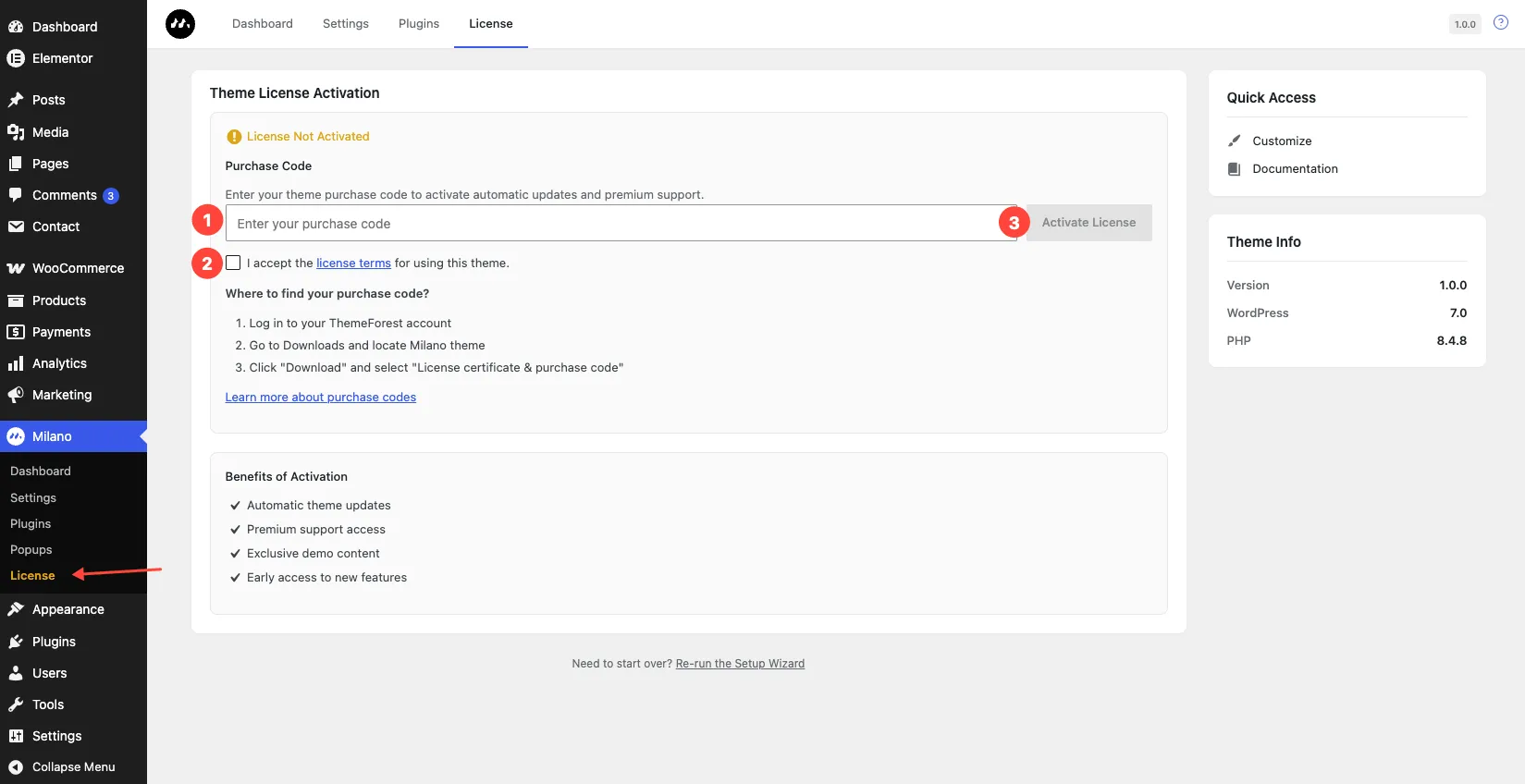
You will see a confirmation message when the license is active. Milano can now check for updates.
Troubleshooting
Section titled “Troubleshooting”Problem: “Invalid purchase code.” Fix: Make sure you copied the full code with no extra spaces. The code comes from your License certificate file — double-check that you copied the right string.
Problem: “This purchase code is already registered.” Fix: Each purchase code works on one live site. If you used it on a test or staging site, deactivate it there first under Milano → Dashboard → License, then activate it on your live site. If you bought a second license, use that code instead.
Problem: “Could not connect to the license server.” Fix: This is usually a temporary server issue. Wait a minute and try again. If it keeps failing, check that your server can reach external APIs — some hosts block outgoing connections by default.